Jupiter ERP

Banking

Payment matching

Match incoming payments to the right documents.

Import bank transactions as CSV, CAMT XML, or MT940, or capture them manually, link to open documents, and run bulk automatic matching, including partial payments.

Note: Banking module

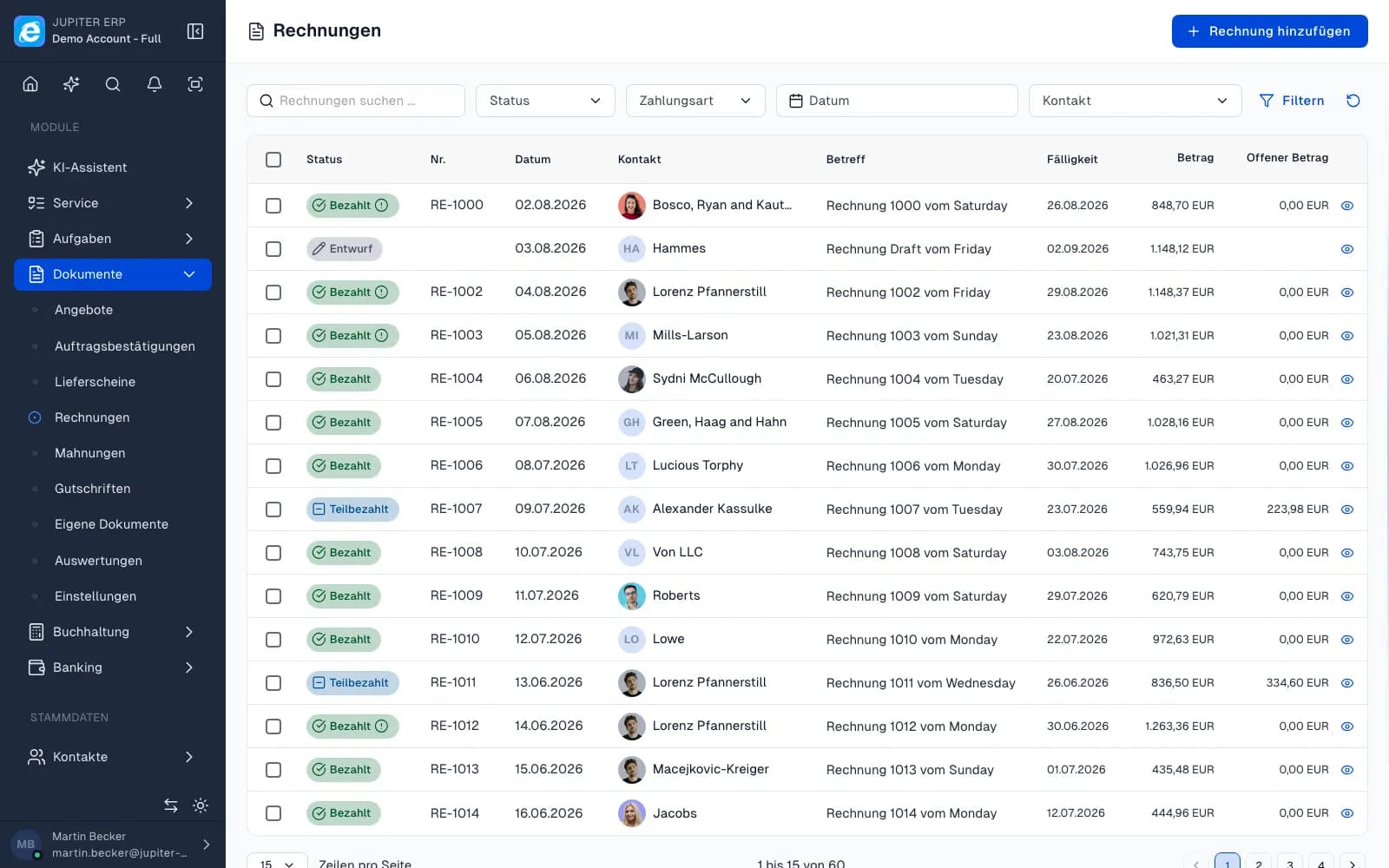
Bankumsätze und Zahlungsabgleich im Jupiter ERP Panel

At a glance

These are the points this feature covers day to day.

  • Statement import
  • Automatic matching
  • Multiple accounts

In the product

The workflow in Jupiter ERP, on this page.

In depth

Background, typical workflows, and concrete panel capabilities, more detail than the summary above.

Match bank transactions to documents

Import bank statements as CSV, CAMT XML, or MT940. For CSV, map columns, review the preview, and import the transactions. Record or edit individual payments manually when no export is available.

Link open transactions to invoices, credit notes, and dunning, including partial payments. Document payment status updates accordingly.
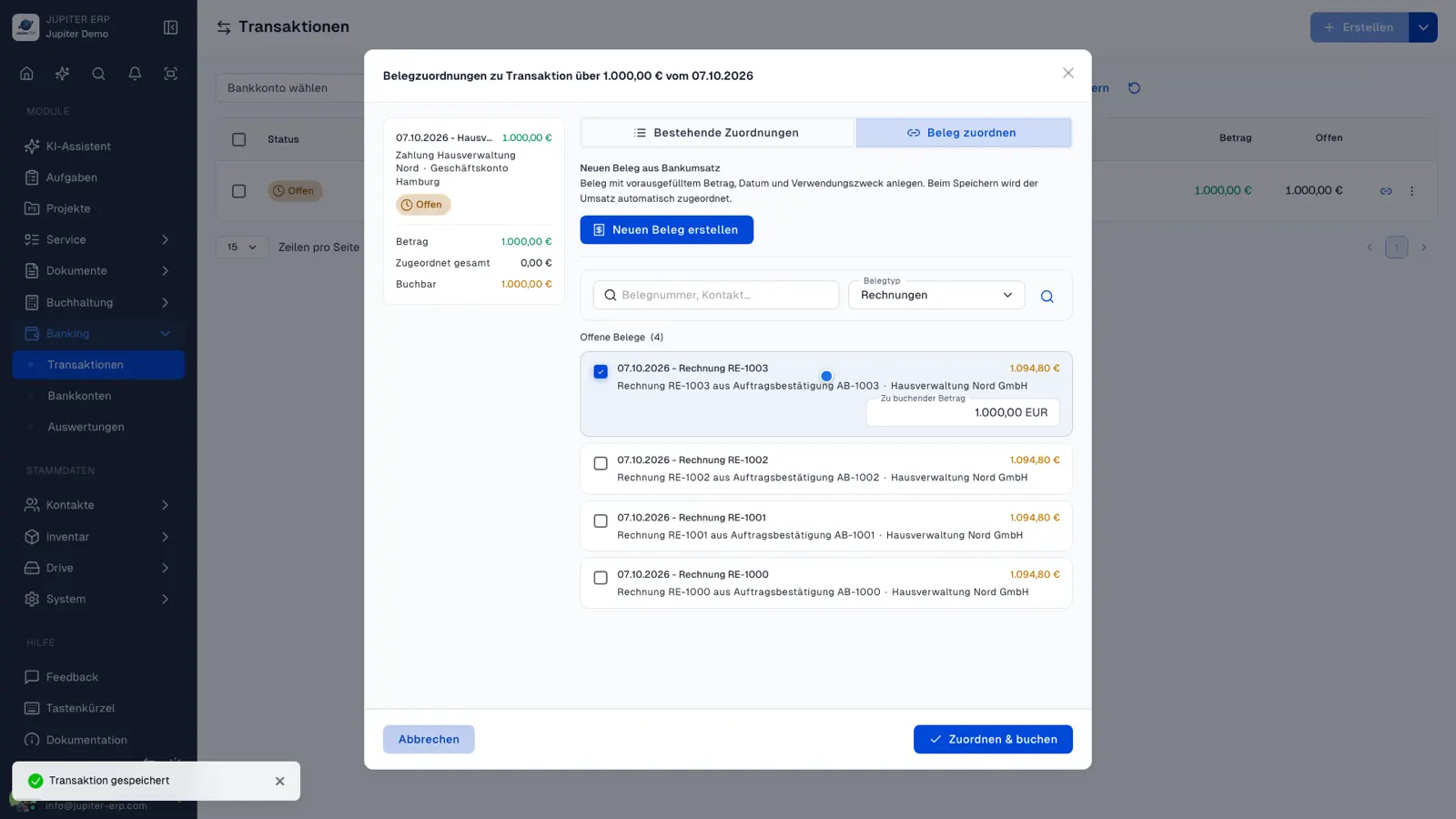

Bankumsätze und Zahlungsabgleich im Jupiter ERP Panel

Review suggestions and post in bulk

Jupiter ERP suggests matches from amount and document number in the payment reference. You review the list and post in bulk: faster than reconciling every line in Excel, without black-box automation you cannot control. Direct debits you previously exported as pain.008 are matched here once they appear on the statement.

What you do in payment reconciliation

Statements arrive as CSV, CAMT, or MT940, or as individual manual entries. You then match them to open documents, one by one or in a batch from suggestions.

  • Keep several business accounts side by side
  • Import CSV, CAMT, or MT940: for CSV, map columns, check the preview, and take the transactions in
  • Enter single payments manually and match them later
  • Link open transactions to invoices, credit notes, and dunning notices
  • Post partial payments; the document stays partly paid until the rest arrives
  • Review automatic suggestions from amount and document number, then post them together
  • Match collected direct debits after the pain.008 file has gone through the bank
  • Watch balances and match status across accounts

Import from your bank statement

A statement file from online banking is enough (CSV, CAMT, or MT940), regardless of the institution.

Invoice payment status updates through the match. Reports, open items, and the cash-basis statement then read the same state.

How it works in the panel

The main building blocks at a glance, complemented by the longer description above.

Statement import

Read CSV, CAMT XML, and MT940. For CSV, map columns, preview rows, and import transactions into the account.

Automatic matching

Suggest open transactions with matching documents and assign in bulk.

Manual transactions

Capture individual payments, edit them, and assign to documents later.

Bank accounts

Maintain business accounts centrally and keep balances in view.

Common questions

Jupiter ERP

Your first invoice in minutes

Start for free: write invoices on the Free plan. Choose plan, term, and add-ons in the app afterwards. Custom adaptations or API integration? Get in touch.

  • 14-day trial
  • No credit card
  • Hosted in Germany
  • GDPR-compliant
Payment matching · Jupiter ERP