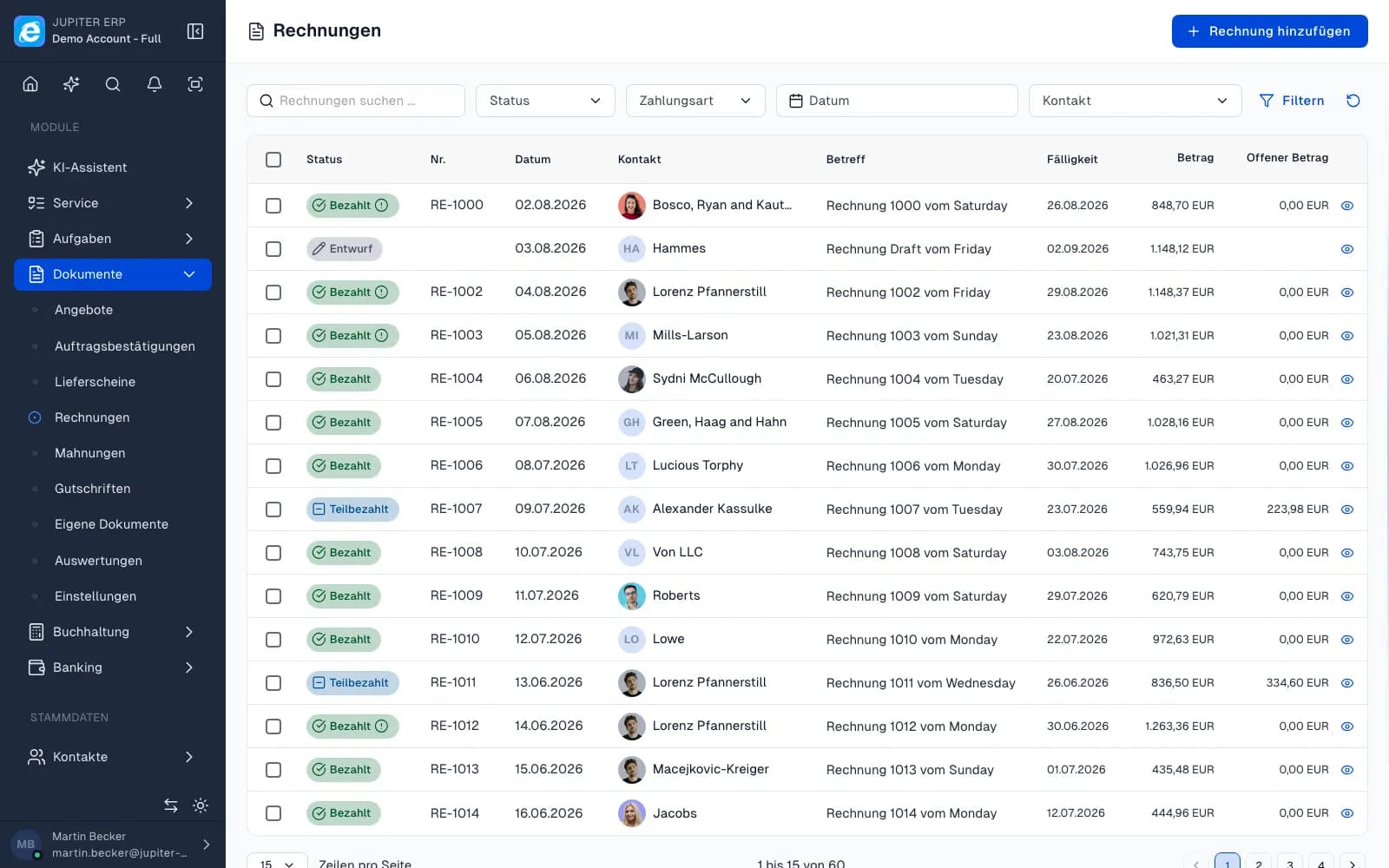
Keyboard shortcuts open search, switch accounts, show the Jupiter AI assistant, and save or send documents without reaching for the mouse.
Before you start: the panel in a browser on a computer with a keyboard. The companion app has no keyboard shortcuts.
Show the list
- Hold Ctrl (Windows, Linux) or ⌘ (Mac) for about one second.
- The Keyboard shortcuts list appears. Under On this page it shows only the actions that are available right now.
- Release the key to close it.
To keep the list open, choose Help → Keyboard shortcuts in the sidebar. The tooltip of the add button in the page header names its shortcut as well.
All shortcuts
| Action | Windows and Linux | Mac |
|---|---|---|
| Open search | Ctrl+K | ⌘K |
| Switch account | Ctrl+. | ⌘. |
| Show or hide the Jupiter AI assistant | Ctrl+J | ⌘J |
| Close dialog | Esc | Esc |
| Browse | Ctrl+←/→ | ⌘←/→ |
| Row | ↑/↓ | ↑/↓ |
| Select row | Space | Space |
| Open row | Enter | Enter |
| Add an entry | Ctrl+Shift++ | ⌘⇧+ |
| Save | Ctrl+Shift+S | ⌘⇧S |
| Save draft | Ctrl+Shift+E | ⌘⇧E |
| Preview | Ctrl+Shift+V | ⌘⇧V |
| Send/Print | Ctrl+Shift+D | ⌘⇧D |
| Edit | Ctrl+Shift+E | ⌘⇧E |
Where each shortcut works
- In input fields only Open search, Save, Save draft, Send/Print, Edit, and Esc work. All other shortcuts apply outside fields.
- Lists: Up and Down arrow highlight a row. Space selects or clears it when the list has a selection column. Enter opens the row. Ctrl or ⌘ with Left or Right arrow moves to the previous or next page.
- Add an entry triggers the add button in the page header, for example Add invoice. The list shows the same name as the button.
- Document and receipt editor: Save and Save draft match the buttons of the same name. Preview opens the PDF preview. Ctrl or ⌘ with Left or Right arrow moves to the previous or next entry of the list.
- Detail view: Send/Print opens the send options, Edit asks whether the document should go back to draft.
- Switch account appears only when your user belongs to at least two accounts.
- Jupiter AI assistant can be shown and hidden on desktop, not on the assistant's own page.
Common problems
A shortcut does nothing.
Check whether the cursor is in an input field or a second dialog is open. In both cases most shortcuts are blocked. If the matching button is disabled (for example because of a missing permission), the shortcut does nothing either.
Ctrl+Shift+E saves instead of editing.
That is intended: in the editor the key saves the draft, in the detail view it starts editing.